Moody Images in Infrared & Color! Fuji X Pro 1 and X-E1


Grabbing your viewers by the throat and not letting go…

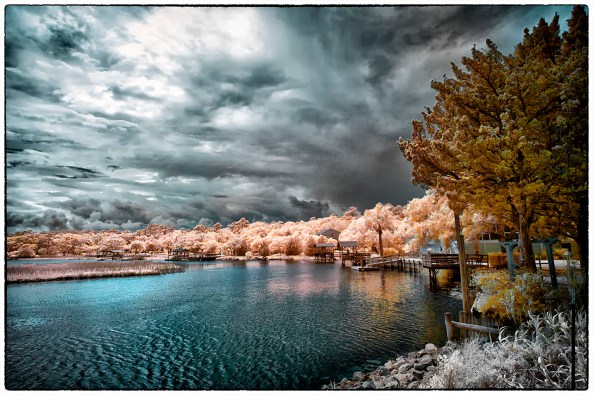
A dark and stormy night

A dark and stormy night, Fuji X Pro 1 w/ 14mm fuji lens at 720nm Infrared.

Images that are dark and moody tend to grab our attention.  It is as though there is something hidden and dark that demands our attention.  We stare at them and analyze the image for a deeper hidden meaning.  This creates emotional impact that allows our viewers to share what we felt as we created the images!

Look for dark, stormy skies, moody clouds, dark trees or water.  Work in Infrared and you will find that you have a much better chance to capture these kinds of images more often than when working in color.  It is still possible to do so in color but you have to work harder at it!

Paradise Island Light, Nassau

Paradise Island Light, Nassau


As you can see in the image above, it is moody and draws the viewer into the scene, but it does not have that “dark and stormy” look and feel!  As I stated before, it is much easier to capture these types of image when working in Infrared!

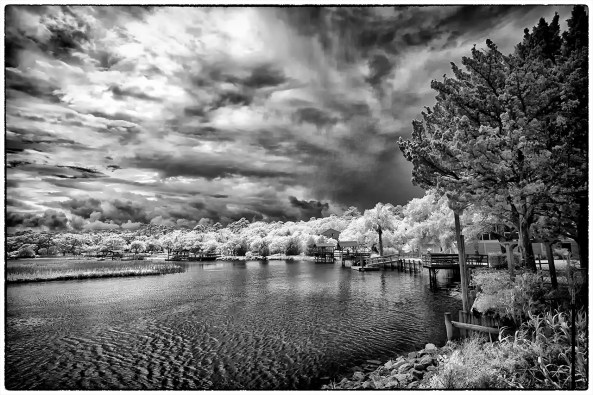
A dark and stormy night

A dark and stormy night

Work in both Faux Color and B&W.  You never really know what you are going to get unless you take the time to post process both ways.  You should even look seriously at the properly white balanced raw image right out of the camera!  Sometime you can get a really stunning image there.

Lady Katheran

Lady Katheran, 720nm Infrared, Fuji X Pro 1 with Fuji 14mm lens.

Here is the same image processed in B&W.

Lady Katheran

Lady Katheran


The workflow to getting great images in post processing is to ALWAYS process in the 3 main ways:

  • RAW:  Check how the images looks right out of the camera.  In 720nm and 590nm you can get some stunning images with beautiful bronze skies!
  • Faux Color:  If your camera captures any color data at all (720nm and lower) then you should ALWAYS take the time to process in this mode.
  • B&W: You just done know what you are going to get unless you try!


Try adding a lens vignette to your images to darken the corners.  This will give more mood!

Here are some examples of RAW and B&W post processing!

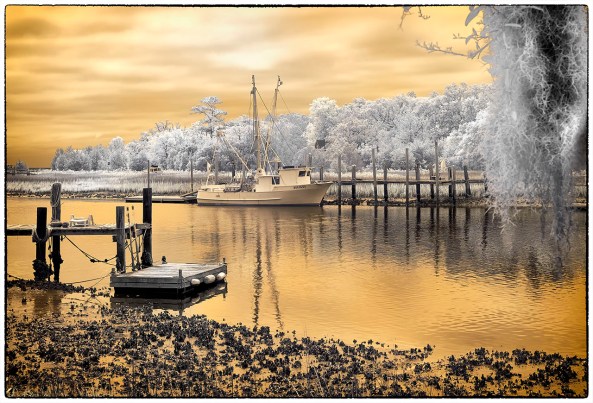
McClellanville Shrimper

McClellanville Shrimper, RAW right out of the camera!


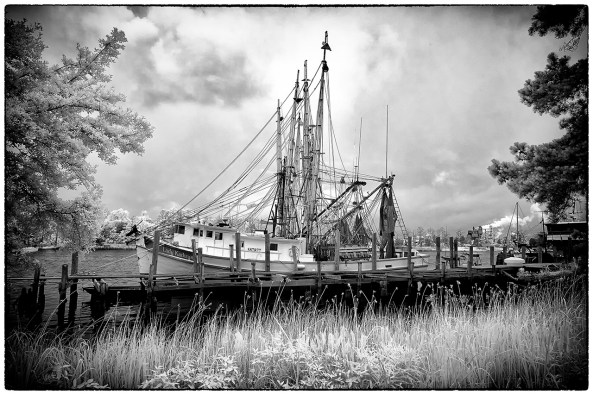
McClellanville Shrimper

McClellanville Shrimper, B&W


As you can see both versions give stunning results.  The most important thing for you to remember is that to get the best results from all of your images it is necessary to take the time to post process in all three modes.  Do not short change yourself by cutting corners.  Take the time to give each image your best try!  


You will be rewarded for you work!


Fuji X Pro 1 – 720nm Infrared Faux Color and B&W Post Processing


A Simple Tutorial on Infrared Post Processing…

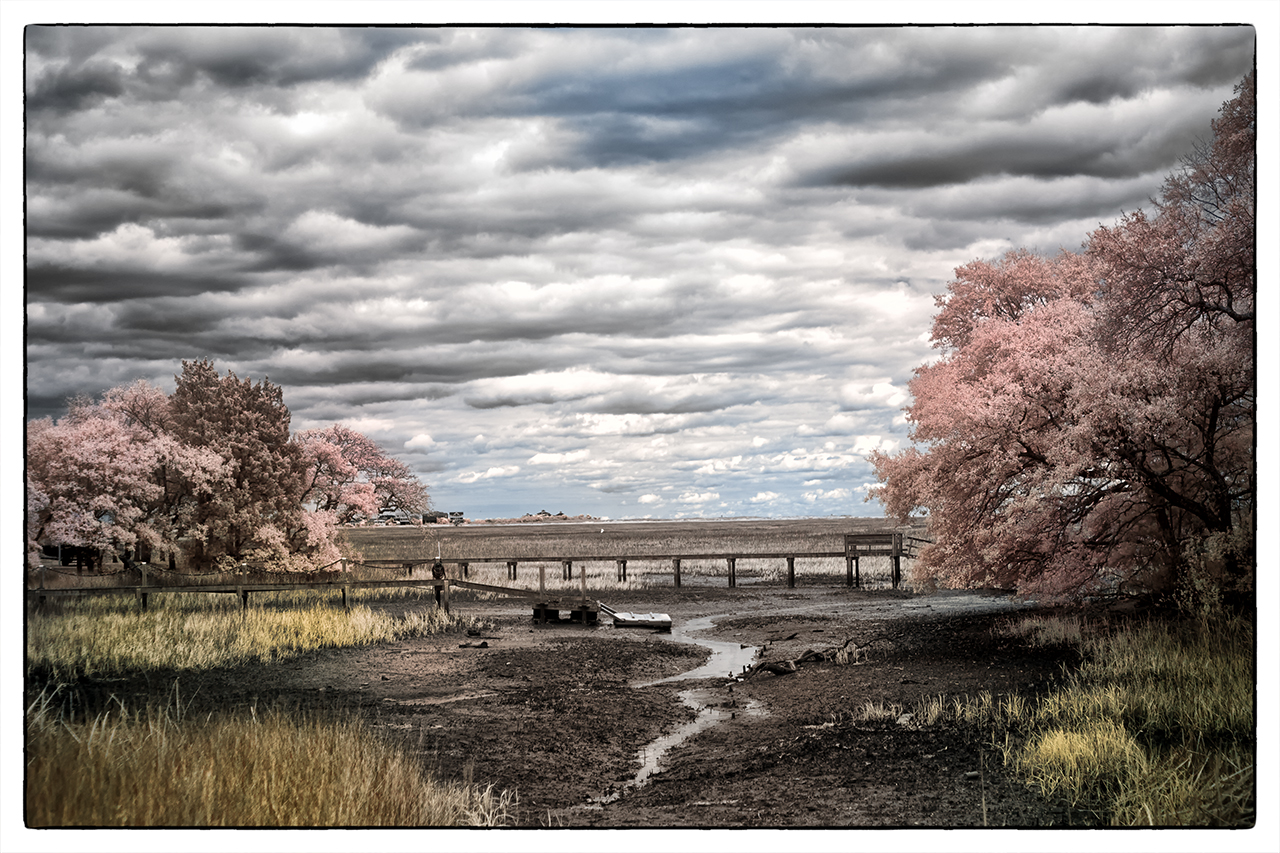
Murrells Inlet Marsh, X Pro 1 720nm IR Faux Color

Murrells Inlet Marsh, X Pro 1 720nm IR Faux Color

The Fuji X Pro 1 has turned out to be one of the best Infrared camera systems that I have ever used… period!  The only good Fuji lenses for Infrared have proved to be the 35mm f/1.4, the 18mm f/2 and the new 14mm.  The Viogtlander 75mm f/1.8 has also proved to be a STUNNING lens also!  So, the camera has proven its infrared capability, now it is time to discuss in detail the recipe for post processing!  It is all quite simple but there are a few requirements that you must understand in order to follow my workflow with understanding.

Needed:

  • Photoshop CS5 or CS6
  • Nik Filters, Viveza, Define Silver EFX Pro plugins for Photoshop, NOT LIGHTROOM.  (You can now purchase the entire library of Nik filters for $149)
  • Kromography False Color Action which can be downloaded here from the right menu bar under the box menu.  You can simply  click on it to download to your computer then drag it to photoshop to install.
  • A converted Infrared camera system capable of generating enough color data to make Faux Color images.  This means 720nm, 665nm, 630nm and 590nm conversions.
  • The ability and desire to experiment!

As you move your RAW (shoot only RAW for IR because of the ability to shift the white balance easily) onto your computer you should automatically tell yourself that you are going to process each selected image in Faux color and B&W.  Sometimes you will notice that the un processed image looks great also (wonderful bronze tones) and decide to do a version like this as well!

Lets talk about the RAW conversion process a little bit.  Photoshops ACR built in RAW converter will NOT apply the white balance correctly and your images will appear deep red.  For this reason I use Capture One version 7 from Phase One.  It is simply the BEST RAW converter that I have ever used.  You can download a trial version and decide for yourself if what I am telling you is true!

My Initial Editing Steps:

  1. Move images from my camera to my computer with an intelligent download tool that renames them with a meaningful name and create an intelligent directory tree for my RAW Library.  For this I have tested dozens of tools and found that Ingestimatic is the best and lowest cost one out there! You can find them here.
  2. Visually edit the RAW files by deleting the images that are simply no good.  Do not clutter up your computer with these useless files.
  3. Batch process my RAW conversion choices and adjust the exposure, contrast and angles.  Capture One will allow this and place the converted image files into a storage directory for later editing.
  4. Within Photoshop, open  each converted image one at a time for post processing
  5. Run Nik Define 2.0 in its default mode on the image for noise reduction, Save.
  6. Run Nik Viveza and without using any selection points increase the structure around 10% and the contrast about 5%, Save.
  7. Having installed the channel swap action that you downloaded here, run it on your image.  The last thing it will do is to open a Hue/Saturation window with the Master channel selected.  Simply select the CYAN channel  and vary the HUE a little bit to bring the sky to a normal blue rather than a blue/green.  Then select the RED channel and adjust the saturation up to a value you like, and repeat with the YELLOW and MAGENTA channels.  When you are happy with the results click on DONE to move on.  REMEMBER:  This is to only get the colors of the FAUX COLOR IR image into the ball park!  The real adjustment will happen next.
  8. Run Nik Viveza again.  Here is where you will use your control points to slightly adjust the colors and contrasts of various image elements to bring out a stunning, etherial work of art!  LOOK closely at your image, decide what you wish to adjust (Hue, saturation, contrasts and de-saturation). MORE ON THIS LATER!
  9. Run Nik Define one more time.
  10. Flatten the image, crop to taste, correct any imperfections (healing tool and content aware fill).
  11. Save the image with a meaningful name in a planned and thought out master image library.
  12. With the finished Faux Color image still open in Photoshop, now run Nik Silver EFX Pro to do your B&W conversion.  There are several built in recipes in this filter that can be used as a starting point.  My favorites are:
  • High Structure Harsh
  • High Structure Smooth
  • Full Dynamic Range Harsh
  • Full Dynamic Range Smooth
  • Fine Art Process
  • Wet Rocks (once in a while)

Save your image again with a NEW file name that reflects the difference in your master image library tree!

Murrells Inlet Salt Marsh, X Pro 1 720nm IR

Murrells Inlet Salt Marsh, X Pro 1 720nm IR

Remember:  Process ALL IMAGES as both Faux Color and B&W.  You really do not know what you are going to get till you do so.

All of this really is VERY SIMPLE and once you have done it a few times it will become second nature to you.  Soon you will be a post processing Infrared God or Goddess!  Congratulations

No, let’s take a look at the image below.  Notice the areas that I have circled as places where I desire to change the colors, contrasts and saturations (both plus and minus). Also consider that this is a 720nm converted camera and as such has a very limited color range (light pinks and warm tones and blues).

Annotated Faux Color, X Pro 1 720nm IR

Annotated Faux Color, X Pro 1 720nm IR

It is in this area and others like them (similar color values that are the same) that we are going to place control points on and change these values!  If you notice that the areas around them also change a little you can place what we call anchor points which are simply control points with no adjustments to bring those areas back to where you wanted them!

You will find this ENTIRE process from the initial loading into photoshop to finish will just take 4 or 5 minutes or less as you become more practiced!

Here are a few more images for you to consider that were taken on the 720nm Fuji X Pro 1 camera system:

Stormy Seas Faux Color, X Pro 1 720nm IR

Stormy Seas Faux Color, X Pro 1 720nm IR

Stormy Seas B&W, X Pro 1 720nm IR

Stormy Seas B&W, X Pro 1 720nm IR

Sometimes Faux Color images simply do not work, then you still have the great B&W ones to work with!

SC School Bus Boat, X Pro 1 720nm IR

SC School Bus Boat, X Pro 1 720nm IR

SC School Bus Boat, X Pro 1 720nm IR

SC School Bus Boat, X Pro 1 720nm IR

Was this information helpful?  Please let me know one way or the other!

Fuji X Pro 1 720nm IR Conversion


Here it is…

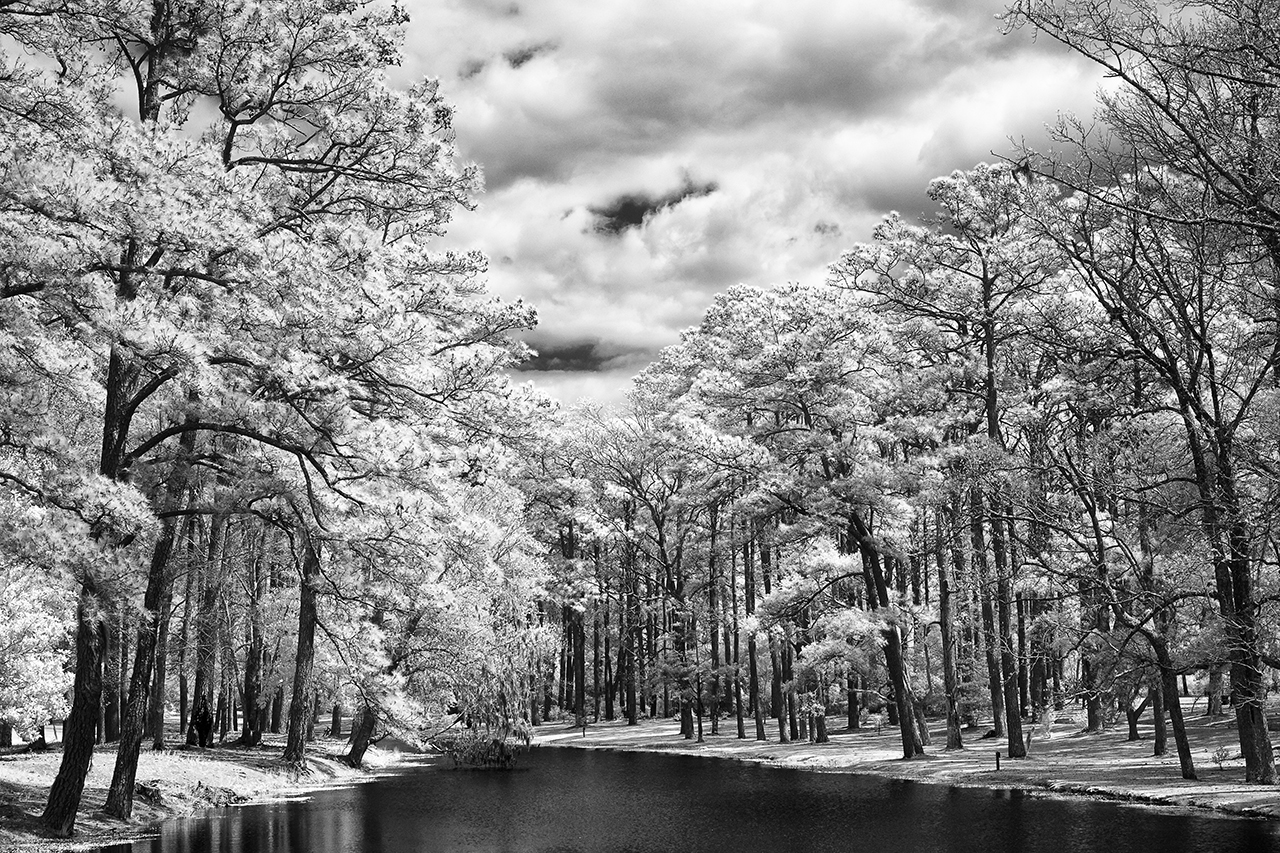
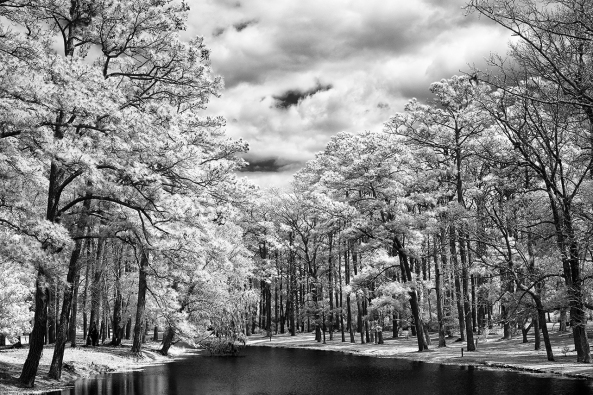
Fuji X Pro 1, Brookgreen Gardens, 720nm B&W processed.  Fuji X 35mm lens.
Fuji X Pro 1, Brookgreen Gardens, 720nm B&W processed. Fuji X 35mm lens.

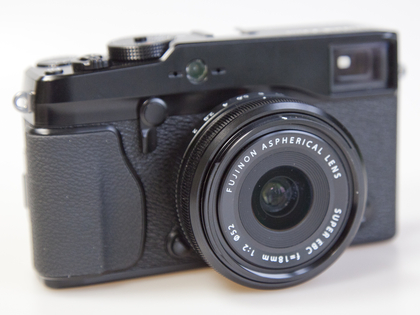
frontnolensWell, it arrived!  After months of consideration after I got my X-E1 I finally decided to send off the X Pro 1 for  Infrared conversion.  It went to Dan at LDP (maxmax.com) and the cost was $500.00.  YIKES!  yes I said $500.00!  Dan explains that the X Pro 1 is the most difficult conversion that he does!  It required him 1.5 days to do the conversion and lots unsoldering/soldering to get to the sensor.  Still, better than sitting on the shelf or an attempted sale on Ebay, plus  I really like the camera and the hybrid viewfinder is just perfect for IR.

I had to decide between 720nm and 850nm so decided to go for the 720 in order to have a little color ( I really like the bronze tones right out of the camera at 720nm).  The total time for shipping – conversion – shipping was 8 days, door to door.  Very fast!

Importantly, the Fuji X Pro 1 camera White Balances perfectly. For these tests I white balanced on a green shrub in front of my gallery.  The process to do so on the camera is simple and fast!

The scope of THIS post is to talk about the conversion itself and to give you some sample images testing each of my normal Fuji and Voigtlander lens set that I use.

  • Voigtlander Heliar 75mm f/1.8 Lens
  • Voigtlander Ultra Wide-Heliar 12mm f/5.6
  • Fujifilm XF 35mm F1.4 Lens
  • Fujifilm XF 18-55mm F2.8-4.0 Lens Zoom Lens
  • Fujifilm XF 18mm F2.0 Lens
  • Fujifilm XF 60mm F2.4 Macro Lens

My first image out of the camera was with the Fujifilm XF 35mm F1.4 Lens.  It is stunningly sharp with great contrasts and tones without any processing at all! This is simply a perfect IR image right out of the camera.
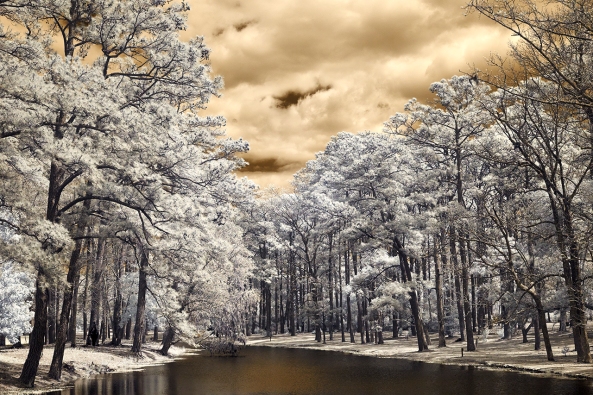
Fuji X Pro 1, Brookgreen Gardens, 720nm RAW un-processed.  Fuji X 35mm lens.

Fuji X Pro 1, Brookgreen Gardens, 720nm RAW un-processed. Fuji X 35mm lens.

OK, the original hot mirror can tell us a lot about the capability of the Fuji body to take IR with no conversion.  The strength of the internal filter from the X Pro 1 is quite strong!  It is actually 2 filters sandwiched together.  They are very much like the B+W 486 IR blocking filter and the LDP CC1 IR blocking filter back to back.  The 486 is a pink/gold  filter that extends a little further into the visible light spectrum before falling off and allows a little less IR to pass through.  The CC1 filter is wider at the UV end.  The two filters together will pass light to the sensor from about  300nm to 700nm.  You can see this in the image below. This is the same filter arrangement (hot mirror) that we normally see in the Canon DSLR line and on the Panasonic Micro 4/3 camera line.
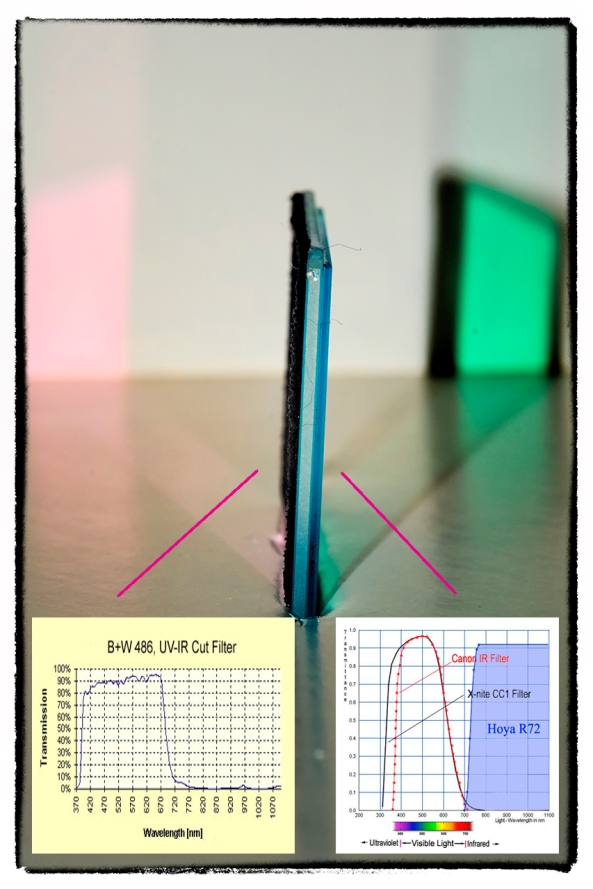
X Pro 1 Hot Mirror showing both Wide bandpass side (gold tint) and the Lower UV side (Aqua)
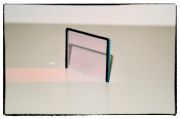
X Pro 1 Hot Mirror showing both Wide bandpass side (gold tint) and the Lower UV side (Aqua)

X Pro 1 Hot Mirror showing the Wider bandpass side (gold tint)
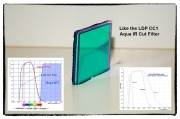
X Pro 1 Hot Mirror showing the Wider bandpass side (gold tint)

X Pro 1 Hot Mirror showing the Lower UV side (Aqua) similar to the CC1 filter from LDP

X Pro 1 Hot Mirror showing the Lower UV side (Aqua) similar to the CC1 filter from LDP

If you were to look at the 486 and CC1 filters they are the same general colors and pass band to what we actually see here!  So , what does this all mean to you?  If you decide (and convince Dan) to have a full spectrum conversion done on your X Pro 1, you can convert it back to a normal color camera by stacking both of these filters (B+W486 and the LDP CC1) on the end of your lens.  The full spectrum Infrared conversion is one where the hot mirror (IR blocking filter) is removed from in front of the sensor and replaced with a piece of clear glass.  Then, the camera is programmed to the specific UV or IR band with the addition of the appropriate filter on the end of the lens.

Normally, the hot mirror can bee seen as the colored layer of glass under the lens as shown here where you can now see the 720nm filter installed.
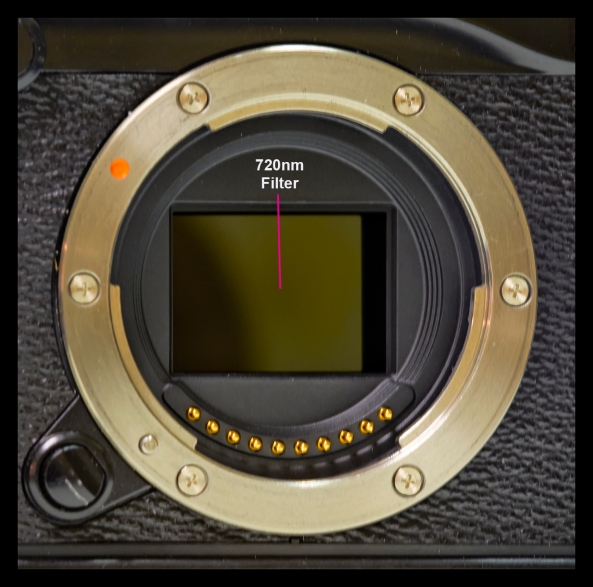
Inside the X Pro 1 showing the 720nm filter.

Inside the X Pro 1 showing the 720nm filter.

Lenses that Work/Don’t Work with the X Pro 1 720nm IR conversion…

Lens Hot Spots

As you may know (or guessed), not all lenses work well in the Infrared spectrum.  This is due to many things, but most commonly, the coatings on the lens elements and the coatings on the internal lens barrel and how they reflect IR light energy.  The common failure then is in the form of HOT SPOTS in the center of the image captured by the camera.  These are always dead center in the middle of the image and present as large round white areas.  Sometimes, they can be overcome by using a wider aperture, but not always…

Lets talk about the lenses that I tested that work (or in 1 case mostly work)…

Fujifilm XF 35mm F1.4 Len:
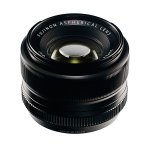
Fuji X 35mm Lens

Fuji X 35mm Lens

WOW, what can I say?  This lens works perfectly in the 720nm spectrum at all apertures!  The camera auto focuses perfectly and fast, the images are sharp and there are no hot spots at any aperture!  Lets take a look.  This first image is raw out of the camera.  I have done not post processing for B&W or Faux Color but there is enough color in the 720nm spectrum to have some interesting Faux Color results.  These types of images will be covered in another post next week and we will spend a lot of time and effort teaching and going through each step in the recipe used to create them in Photoshop CS6 and the Nik filter set.

Fuji X Pro 1, Brookgreen Gardens, 720nm RAW un-processed.  Fuji X 35mm lens.

Fuji X Pro 1, Brookgreen Gardens, 720nm RAW un-processed. Fuji X 35mm lens f/8

Next, is the same image post processed using CS6 and Nik’s Silver EFX Pro for B&W…

Fuji X Pro 1, Brookgreen Gardens, 720nm B&W processed.  Fuji X 35mm lens.

Fuji X Pro 1, Brookgreen Gardens, 720nm B&W processed. Fuji X 35mm lens f/8

Voigtlander Heliar 75mm f/1.8 Lens:
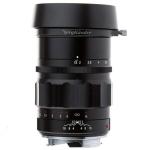
vt7518bThis lens from Voigtlander is one of the sharpest, easy to use lenses that I own.  The fit and finish on this lens is something to behold.  The lens has an included clamp on lens hood that works very well.  The focusing is so smooth that it is scary… It is a PERFECT match for the Fuji X system (X Pro 1 and the X-E1) and works just as well here in Infrared!  I was very happy to discover this in my tests at 720nm!  There are no hot spots at any aperture.  It takes Take a look:
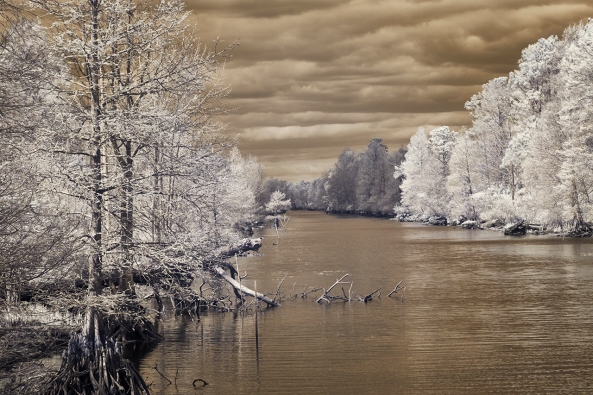
Voigtlander Heliar 75mm f/1.8 Lens at f/11.  Raw

Voigtlander Heliar 75mm f/1.8 Lens at f/11. Raw (notice the nice bronze coloring)
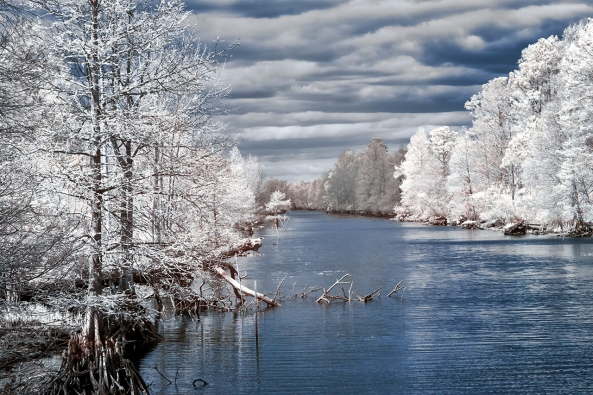
Voigtlander Heliar 75mm f/1.8 Lens, f/8 Faux Color Post Processing
Voigtlander Heliar 75mm f/1.8 Lens, f/8 Faux Color Post Processing

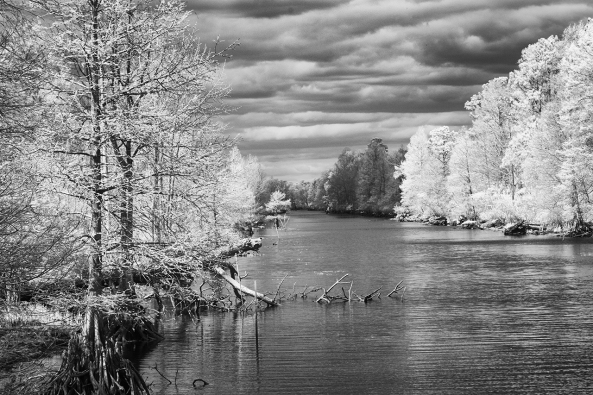
Voigtlander Heliar 75mm f/1.8 Lens, f/8 B&W Post Processing

Voigtlander Heliar 75mm f/1.8 Lens, f/8 B&W Post Processing

Fujifilm XF 18mm F2.0 Lens:
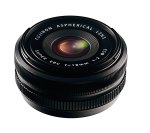
Fuji X 18mm lens.

Fuji X 18mm lens.

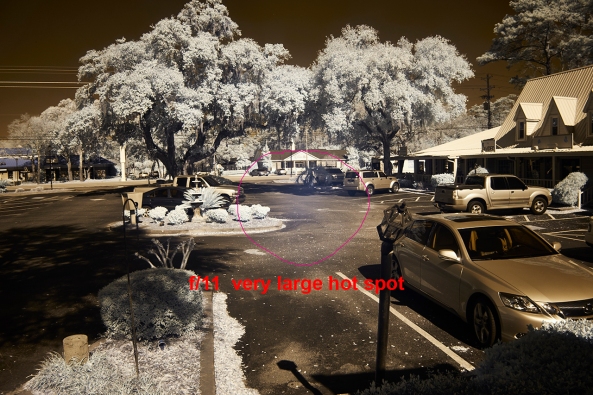
This lens works well as long as you do not go beyond f/8.  Past that it generates very discinct hot spot in the center of the image.  While this can be overcome in post processing  with Nik’s Viveza, it is still slightly disappointing…  Still, when used at f/8 or wider the lens generates pleasing sharp images that make it worthwhile to carry in your camera bag!  Here are the RAW test samples for you to consider.
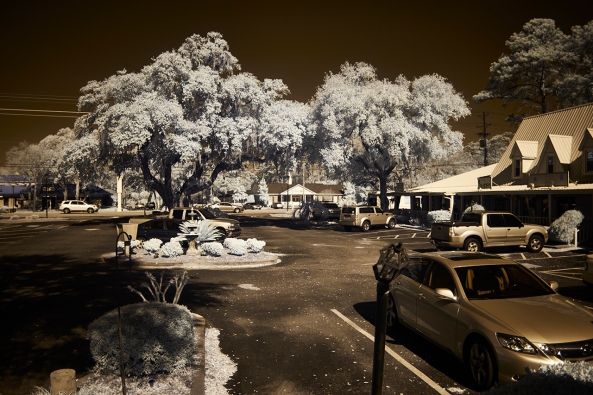
Fujifilm XF 18mm F2.0 Lens at f/2
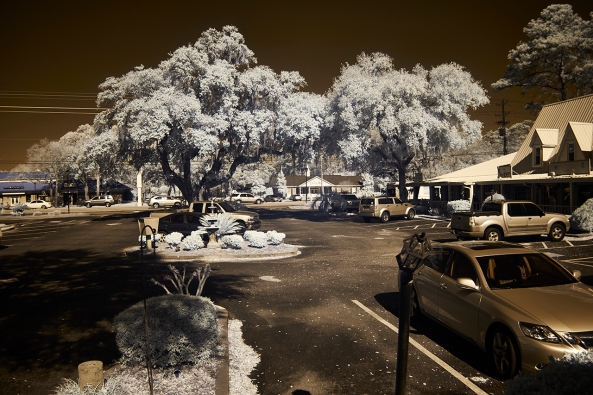
Fujifilm XF 18mm F2.0 Lens at f/2

Fujifilm XF 18mm F2.0 Lens at f/4
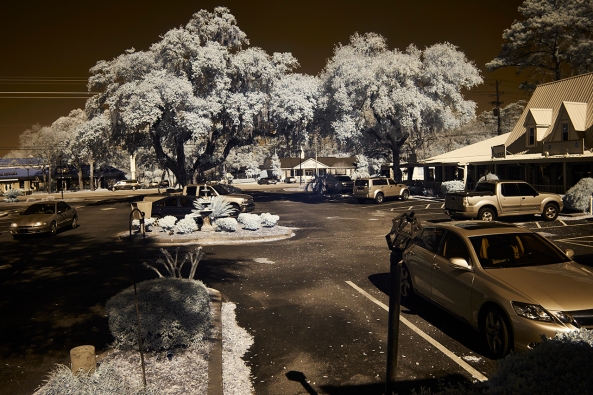
Fujifilm XF 18mm F2.0 Lens at f/4

Fujifilm XF 18mm F2.0 Lens at f/5.6
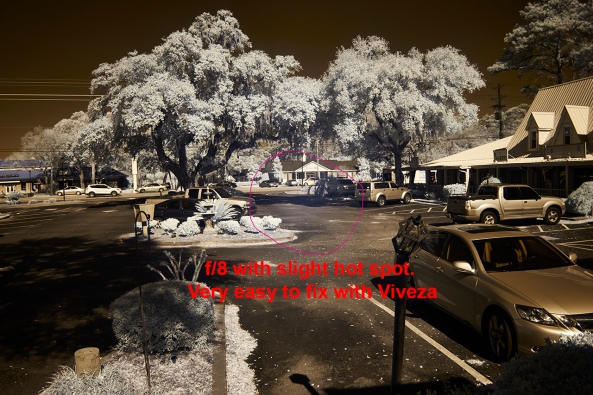
Fujifilm XF 18mm F2.0 Lens at f/5.6

Fujifilm XF 18mm F2.0 Lens at f/8
Fujifilm XF 18mm F2.0 Lens at f/8

Fujifilm XF 18mm F2.0 Lens at f/11

Fujifilm XF 18mm F2.0 Lens at f/11

Voigtlander Ultra Wide-Heliar 12mm f/5.6
Voitlander 12mm

Voitlander 12mm

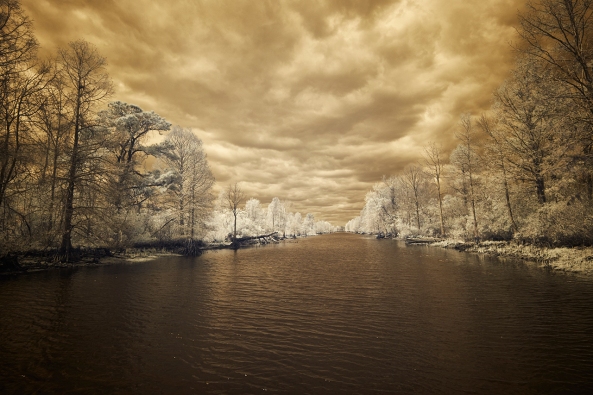
Another great lens from Voigtlander.  This one has a built in lens hood and while it will take screw in filters they need to be wide angle versions.  It also has that super smooth focusing feel but since it is so ultra wide at 12mm you can focus it pretty much at infinity and it will always be in focus.  I love this lens on the X Pro 1 and X-E1.  For 720nm Infrared, it works great until you hit f/22 then it gives a faint hot spot.  This is just fine with me as I rarely go beyond f/11 or f/16.

Take a look at the samples:
Voitlander

Voigtlander Ultra Wide-Heliar 12mm f/5.6 at f/8 RAW
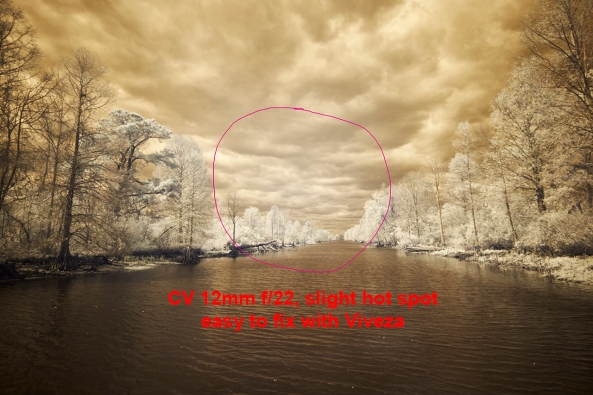
Voigtlander Ultra Wide-Heliar 12mm f/5.6 at f/22 RAW with hot spot

Voigtlander Ultra Wide-Heliar 12mm f/5.6 at f/22 RAW with hot spot

Fujifilm XF 18-55mm F2.8-4.0 Lens Zoom Lens:
Fuji 18-55

Fuji 18-55

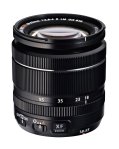
This lens is such a disappointment to me…  It is without a doubt my favorite walk around Fuji lens on the X-E1 camera. I hardly ever take it off.   Sharp and clear with great contrast.  That being said it is all but USELESS for Infrared!  There is a major hot spot problem at ALL focal lengths at ANY aperture past f/4.  At f/4 it did take nice images but as you understand, useless for landscapes.   Bummer…..  I am beyond disappointed over this one.

Fujifilm XF 60mm F2.4 Macro Lens:
Fuji 60mm

Fuji 60mm

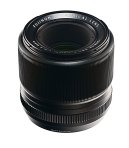
I am going to initially tell you to simply forget this lens for Infrared.  It has a seriously bad hot spot at all apertures.  I will also share with you that I might actually have a bad copy of it.  It gives a terrible hot spot on my X-E1 when shooting in color as well, especially when using a flash.  I think that I am going to send it back to Fuji for repair and see what they think.  Depending upon that I might re-evaluate it for Infrared later on!

Ok this is all for the initial post.  

The next post will focus on post procseeing and what can be acheived artistically with this new Infrared Fuji X Pro 1!

Please let me know what you think!

UPDATE: Fuji X Pro 1 and Advanced HDR Photography with NIK, Photomatix & Merge


WOW, the world sure changes fast if you close your eyes!

OK after one of my readers left a comment suggesting that the new version of Nik’s HDR EFX Pro 2 was likely supported in Lightroom I decided that I should perhaps do a little research!

Here is what I found:

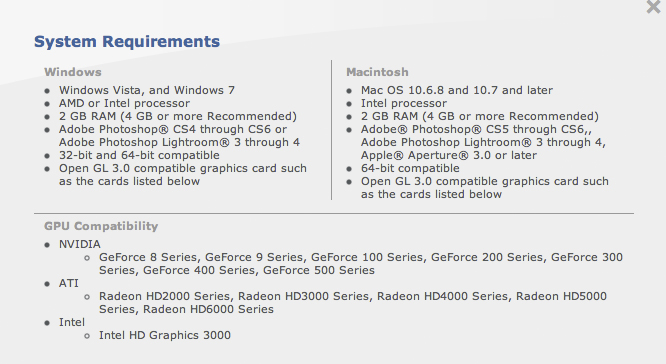
Detailed compatibility specs for NIK HDR EFX PRO 2

So, as you see, as long as you are running a 64 bit OS plus very specific hardware in the graphics department it seems as if you can now run this fine HDR tool in Lightroom and Aperture!

Nice upgrade Nik!

Detailed Fuji X Pro 1 Infrared Tutorial: Part 1, Equipment & Shooting!


Creating Emotional IR Images From Your Heart

Using the Fuji X Pro 1 for Infrared

Infrared photography means so many things to me… I have a popular Infrared Educational Blog at http://infraredatelier.wordpress.com/ where I have shared all of my secrets surrounding Infrared photography for several years, I have a book in work on Infrared photography, but MOST IMPORTANTLY, I have practiced the art of creating emotionally charged Infrared images for longer than I can remember, even as long as 45 years ago with film.  Here, today, I will disscuss with you the technical details of using your Fuji X Pro 1 camera system to create these emotionally powerful images as well.

X Pro 1 Faux Color IR Image with only the channel swap

Understand this, you can create Infrared images several different ways:

  1. Film:  Rolli makes a great 720nm IR film in many different formats that with the addition of a 720nm filter on your lens will create great IR images at 100 ISO, and with no filter great B&W images at 400 ISO!
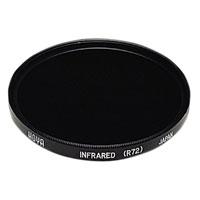
  2. Hoya R72

    Standard Digital COLOR Camera:  With the addition of a 720nm or 850nm IR filter on your camera lens your camera can capture Infrared images.  There is a tradeoff to this way though because each camera manufacturer places some sort of UV/IR blocking filter over the image sensor that allows only visible light to pass through.  Some of these filters are weaker than others and these cameras make for a system that will do well in Color and OK in Infrared with reasonable IR exposure times around a second or two.  Others have a strong filter allowing only a small amount of IR energy to pass.  These require VERY LONG exposure time in order to overcome this filter.  The Fuji X Pro 1 is one of the cameras with a weaker filter! This is exciting because it enables you to easily create IR images with an unmodified camera system!

  3. Converted Infrared Camera:  This type of system is the most popular by far.  There are 2 types:
    • Full Spectrum conversion: The internal UV/IR blocking filter is removed and replaced with a clear glass filter. You can then program the camera with an external IR filter in any range from UV to Color to Infrared!  This is the most adaptable IR system but costly because IR filters for your different lens sizes are expensive!
    • Dedicated Infrared Conversion:  This type has the internal UV/IR blocking filter removed and replaced with a specific IR pass filter and will create IR images in that band only.

What your camera sees!

So with regard for the Fuji X Pro 1 system we are going to discuss option #2, the standard color camera with an external IR filter attached to its lens.  But you ask: “What filter can I use?”. Well since we are not modifying the internal UV/IR blocking filter you must understand that the camera will pass normal visible colors as well as IR if the external filter allows it.  This is both good and bad!  If you were to install a 590nm IR filter on your lens the camera, it would see everything from 590nm up to 1000nm.  But because the internal UV/IR blocking filter allows much more visible light than IR through, it will poison the exposure metering system.  It is going to see the vast majority of the light as color (red) and expose for that rather than the IR portion.  So attempting to do this will cause very unreliable exposure and great frustration on the part of the photographer.

What we need is to attach an IR filter that blocks ALL of the visible light and only passes IR to the sensor!  So it is best to choose a 720nm IR pass filter to your lens like the Hoya R72 or a 800nm B&W IR only filter like the B+W 093.  The higher you go in nm the longer the exposure time will be…

Now, knowing that we are going to use the 720nm filter which will only pass IR energy from 720nm and up while blocking ALL of the visible light our metering system will now function as it should!

Considerations of problems that must be overcome within the X Pro 1 to get good IR images

  • Even though the Fuji X Pro 1 has a weak UV/IR blocking filter there is still one there.  Exposure time at a normal low noise ISO of 800 and below will still require an exposure time too long to hand hold and still get sharp images.  Most of mine were at 1/30s and longer.
  • Yes, the X Pro 1 works well at high ISO settings, but in IR the camera will still create noise in the dark areas of the image.
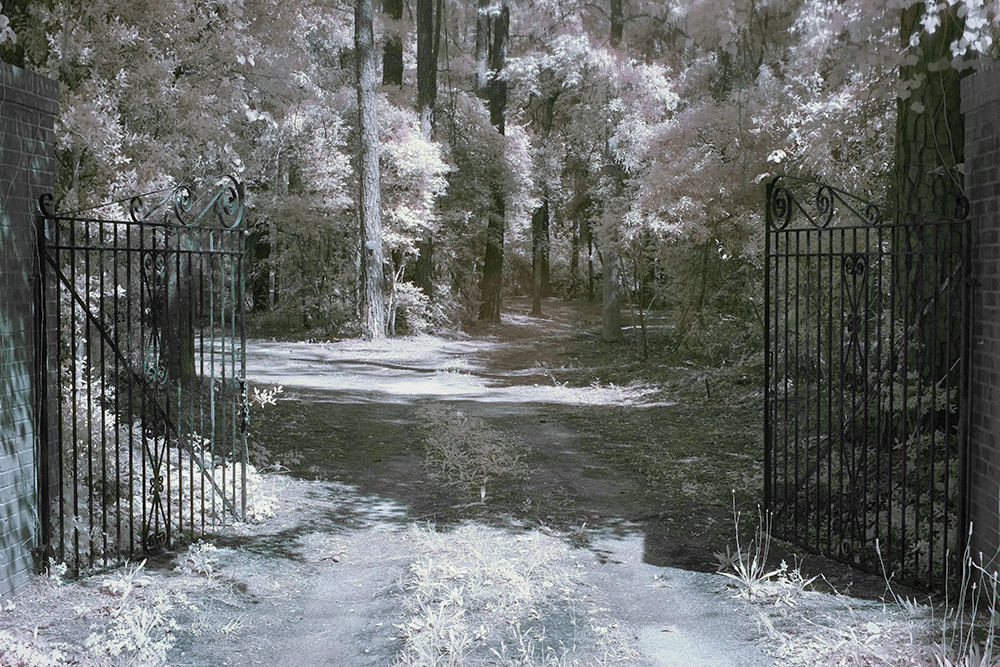
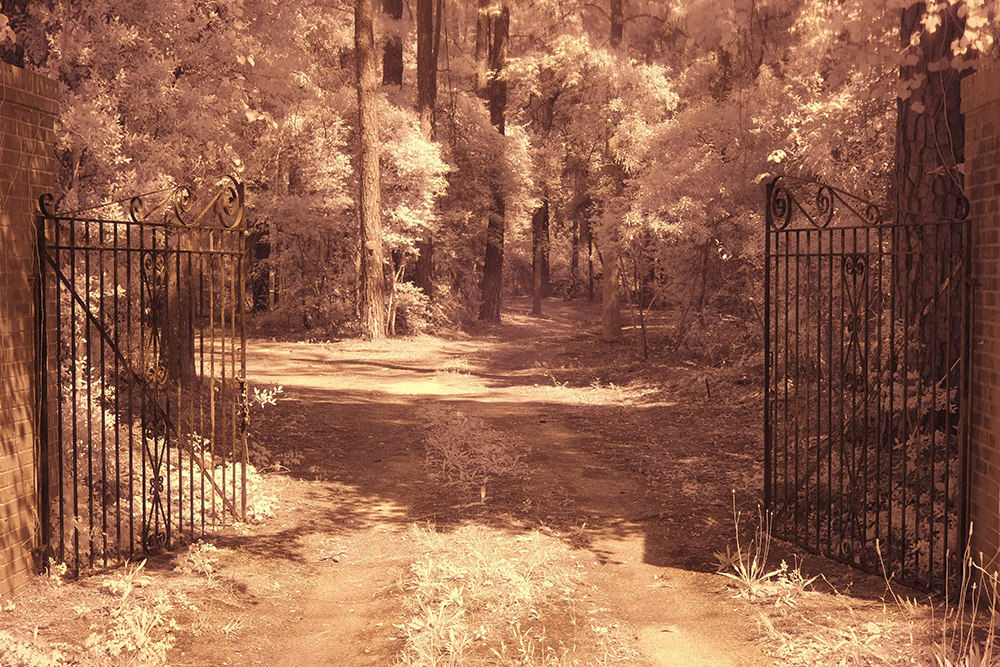
  • Fuji X Pro 1 with a custom WB right out of the camera. This is as close as you can get but will still generate a great image.

    White Balance is IMPORTANT when shooting in IR!  The X Pro 1 will NOT reliably do a custom white balance with the 720nm IR filter installed.  But it does have a manual Kelvin White Balance option, so when shooting IR you need to go to this sub menu in the WB settings and set it to 2500K.  I have talked to others doing this and have heard that they also take away green as well in the menu.  I personally think that this is unnecessary and by leaving the green neutral you will get more pleasing Faux Color images.  A properly white balanced image taken on your camera has s slight reddish cast, the sky should be bronze and the green leaves should have a monochromatic feel with a bluish cast. (more on this later) An improperly white balanced camera image will be pure dark red.  While you can still use this image in post processing the lack of a good white balance will throw off your exposure system. Read your camera manual on white balance and understand it!

  • Longer shutter speeds need a tripod to get sharp images!
  • Remote shutter cable to cut down on camera shake!
  • The Hoya R72 720nm IR filter will generate good Faux Color infrared images some of the time, but good B&W images all of the time.  Keep this in mind while shooting and plan to always explore both options in post processing!
  • Faux Color IR images require a channel swap in post processing.  ONLY the Photoshop family (CS through CS6) has this function built in!  Photoshop Elements has an optional plugin called Elements Plus that you can purchase to do this.  Lightroom and Aperture DO NOT have this function!

Ok, enough of this for now. Lets talk images…

 The Hoya R72 IR filter is almost black.  You can see very little through it but don’t worry, the camera can see through it just fine!  You can find these filters on Amazon for about $58.00 in 52mm.  There are a lot of other filter companies out there that make these, some good some not so good… I trust the Hoya!

Mount the filter on your lens, set the ISO to around 1000 and put the camera on a tripod.  Make sure that you have properly set the WB either as a custom on or as a Kelvin entry.  If you choose custom, the camera will require a lot of light to due this properly.  Use green grass to generate the custom white balance.

I like to use the optical viewfinder rather then the LCD or EVF for shooting in IR.  Choose and frame your subject carefully.  Hmm, a word about composition…

There are three items that can make IR images really powerful and full of emotional impact:

  • Sky with clouds!
  • Water reflections!
  • Green Leaves!

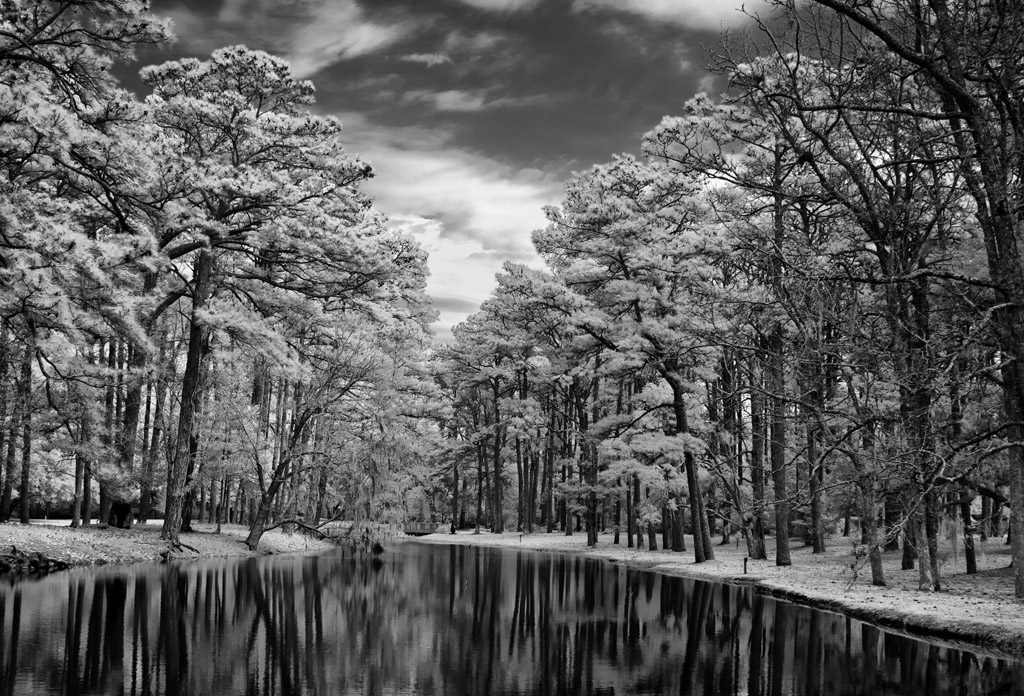
The more of these items you can get in your images the better they will be!  Here is an example…

Clouds, Water and Leaves! What more could you ask for? While not done on a X Pro 1, this image could just have well been so!

 As you can see, the sky, reflections and leaves create an emotionally packed, etherial image that draws your viewer into it!  Keep these three compositional elements in mind as you go forth and create your images!

Exposure Issues…

OK, last part of this post!  There are a few small exposure issues that you need to be aware of while doing IR work.  They are:

  • Red Channel over exposure: The RED channel will aways expose a stop or more higher than the blue and green.  After you have taken the image and see the preview on the LCD panel look at the histogram.  It only displays the combination monochrome histogram and if it is close to being overexposed you will get better results by dialing in -1ev exposure compensation and re-take the image.  This is due to the red channel being more sensitive to infrared and causing the overexposure.  You can really see this during the RAW conversion or in photoshop during post processing by looking at the RGB histogram there.
  • Hot Spots:  Some people have reported hot spots in the center of their images when using the 18mm lens.  I have NOT personally  seen any evidence of this with my system as of yet.  Hot spots are areas in the center of each picture that is usually a stop brighter.  They are caused by light bouncing back and forth between the sensor and the lens elements.  These are lens specific and very little can be done while taking the picture to stop or reduce them.  BUT, the aperture can have a drastic effect on them!  If you see these then try adjusting the aperture and review the results, you just might be surprised!  You MUST ALWAYS use a lens hood when shooting in IR.  This will also help stop hot spots by stopping light from striking the objective lens at extreme angles then bouncing around inside the lens between elements.  If you do notice the hot spot you can remove it in post processing very easily by using Nik Filters Viveza.  You use the selection point by placing it in the center of the spot and then reduce the brightness!

OK, this is enough for today.  The next post will be a detailed Post Processing tutorial that will take you through both Faux Color and B&W processing.  I even have a photoshop action that you can download to semi automate the channel swap and cut down your post processing time!

Updated Grist Mill & Covered Bridge Gallery…


Major Image Gallery Update

I have just updated the images in my Grist Mill & Covered Bridge gallery in the menu on the top of the page under galleries!  I added about 25 new mills and bridges plus provided name and state data under each image!  I hope that you enjoy them as much as I did in creating them!

There is something especially pleasing about mills and bridges that can transport me back to a different time and age!  I will literally  travel hundreds of miles out of my way to visit them!  In 2011 I spent 3 weeks visiting 19 states on the eastern seaboard doing just so, plus this year in May, I spent several days exploring the mills and bridges of south central Georgia!

You can visit the updated gallery by clicking on the drop down under Galleries in the top menu or if visiting from off site click on the link below:

https://markhilliardatelier.wordpress.com/gallery/color-infrared-grist-mills/

Tybee Island, GA, Hidden Paradise!


Once here it is difficult to leave!

Tybee Island Beach in front of our rental!

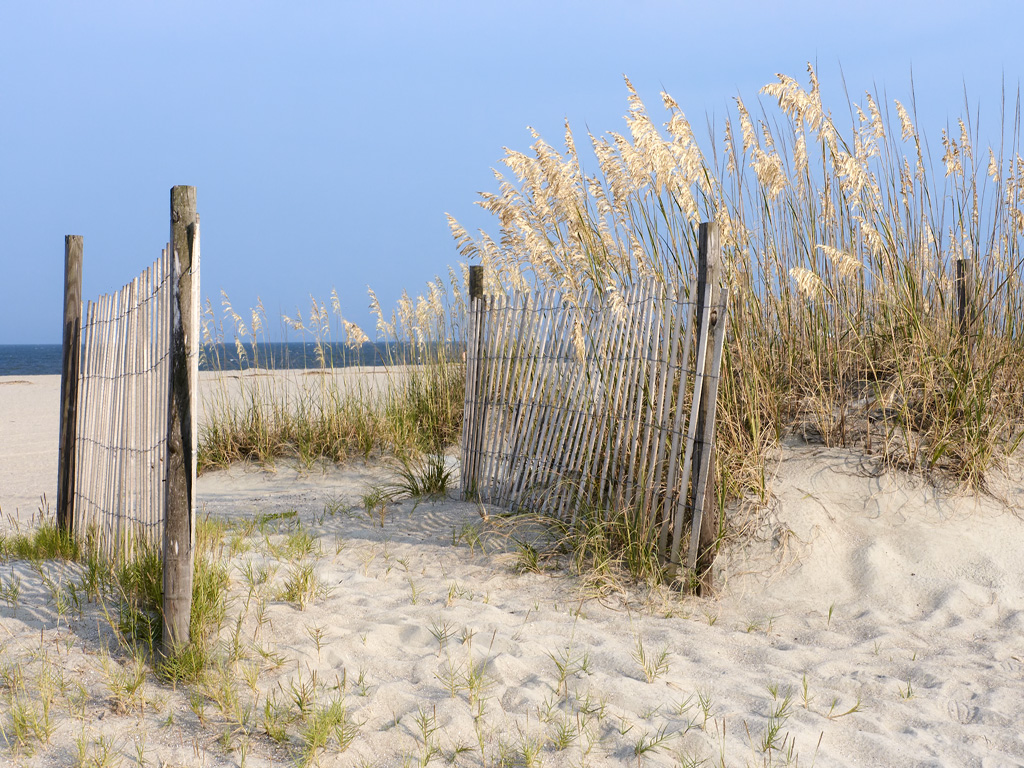
Every year I try to make it down to Tybee Island, GA for a visit.  It is one of the hidden treasures of the Southeast coast!  There are two lighthouses there, shrimpers, beaches, birds and many more photographic subjects!  Last year, my wife Ellen made arrangements for a family vacation there with a rental right on the beach.  There were 9 of us there in all and we had a great time!  For me the exciting parts of the week were the photographic excursions out and about.  I am always excited to visit the same places many times as they will always present themselves in a different fashion on each visit!  Below is a small selection of the many things to experience while visiting…

The sand on the beaches there is a fine off white sugar sand and the kids loved to play in it.  There were ALWAYS large ships lined up  to leave and enter the river going up to the port!  Every morning there were shrimp boats going back and forth just off of the beach fishing!

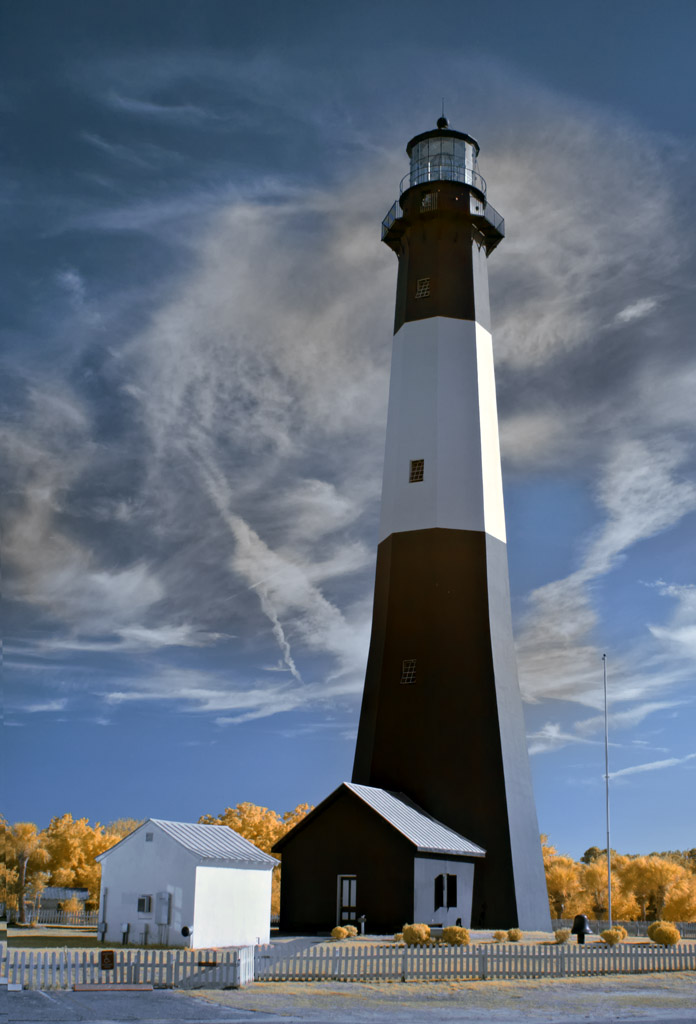
The Tybee Island Lighthouse is a MUST SEE!  It is one of the better looking lighthouses on the coast and always makes a great photographic subject!

Tybee Island Lighthouse in 590nm Infrared.

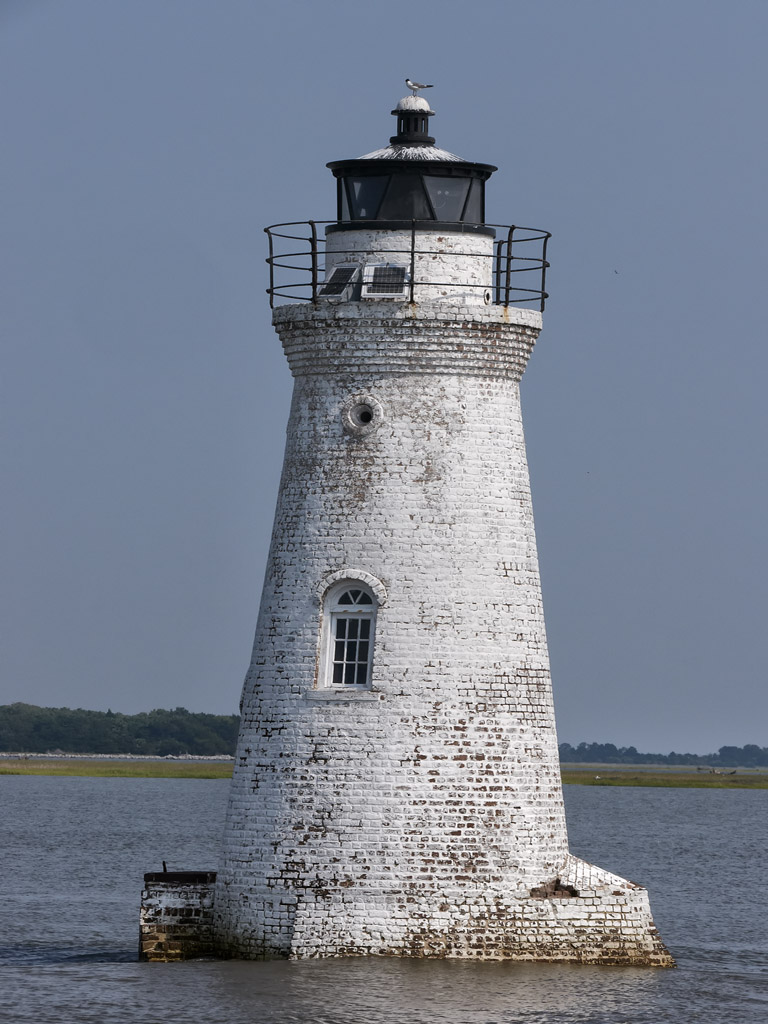
Cockspur Lighthouse , the 2nd local light house is up the river a mile or so from the Tybee Island Lighthouse.  You can visit it by heading north off of Tybee Island and stopping just before the first bridge and taking the small dirt road off to the right to the marina.  You will then have access with a longer lens to photograph it.  I have done this many times but for this trip we took a Dauphin boat trip out into the river and went around the lighthouse several times.

The Cockspur Lighthouse in Tybee Island.

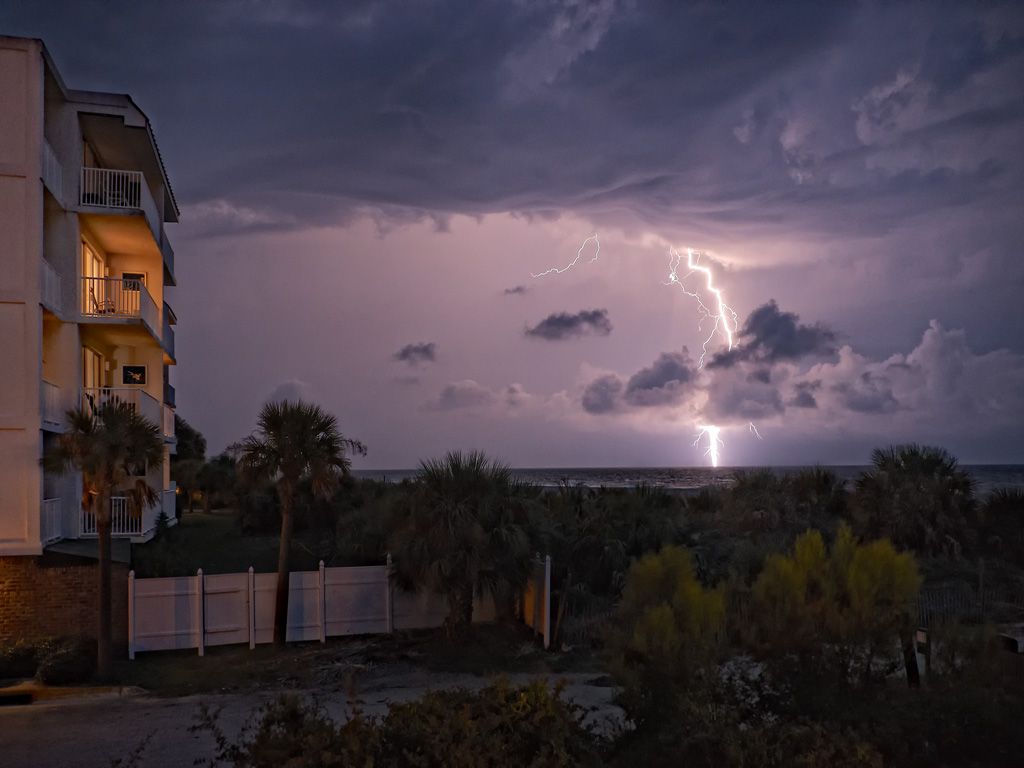
One of the more interesting things about Tybee Island is the fact that during the summer there are usually daily thunderstorms the come thru the area and this makes for a good opportunity to grab some high speed lightning shots!

High speed daylight lightning capture from the deck of our rental!

Tybee Island is worth taking the time to visit anytime of the year.  Go for a day or a week, you will not be disappointed!

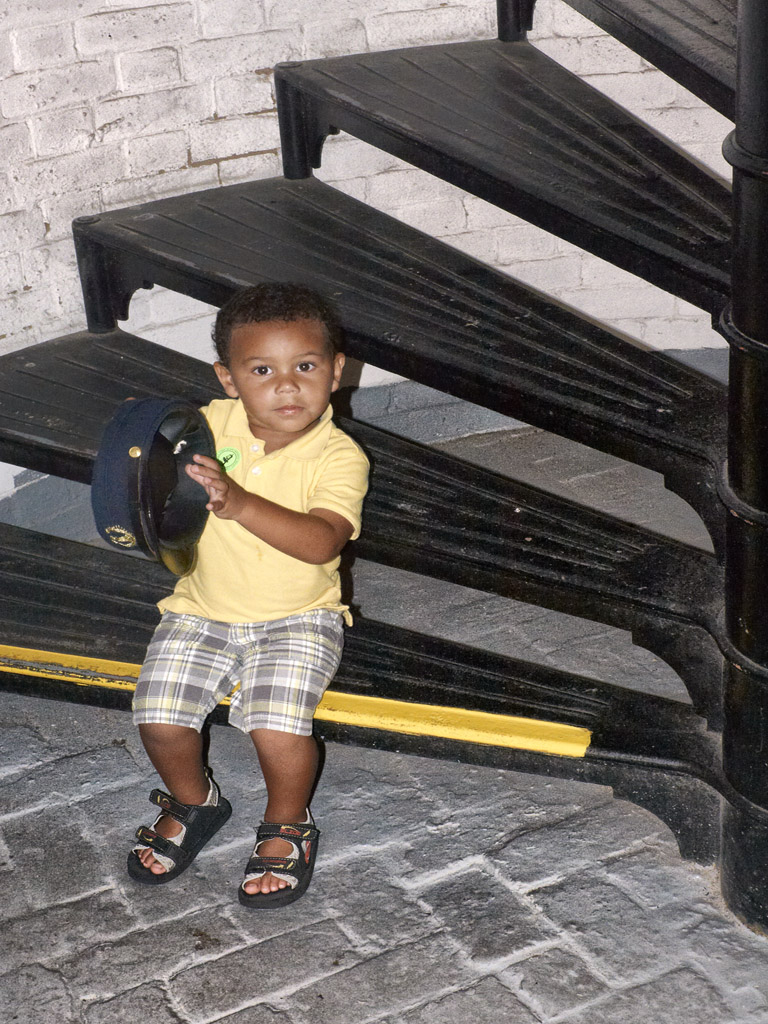
My grandson Jordan pondering the lighthouse keeper's hat as he gets ready to climb the lighthouse stairs!

Galleries Are Here!


The Gallery pages are coming online!

Sunrise on Folley Beach, Light painting on the driftwood with a white LED light! Very LONG Exposure...


On the top menu of the blog you will find several pages listed across the top.  The one labeled Galleries is actually a series of drop down menus which will let you select several organized image galleries containing my favorite work from over the years.  So far, I have 4 galleries populated but will be expanding over this month to around 15.  Please stop by for a visit and come back often to see the changes there!

I hope that you enjoy viewing them as much as I enjoyed creating them!  They cover about 15 years of my work since living in the Low Country of South Carolina and cover about 19 different states and 6 different countries! I even have some high speed water drop photography thrown in as good measure.

Time & Time Again…


How Infrared Changed My Life!

I am getting old and definitely tired.

I shoot Canon gear and always have.  I always purchase 1D bodies and currently have the 1DMK3.  For lenses I only use L glass.  I have been a photographer for 48 years and am retired from Eastman Kodak.  I have a lifetime of photographic experience.

That being said I must tell you that except for my hummingbird shots in Sept and Oct (on the tripod only) that I have not used my Canon equipment since June 2009.

On June 9, 2009 I went into the hospital to have severe spinal damage fixed in my neck that had taken the use of my arms in less than 30 days. I was only to be there for 4 days.  53 days later (25 in ICU on a ventilator) I came home with a breathing tube in my neck and a feeding tube in my stomach because everything in my neck was paralyzed and I could not swallow water or food for another 6 months. In 2010 both tubes were removed when I started to swallow again and I started thinking about photography again. I lost 50% use of both hands and 80% of my neck motion due to 3 levels of cadaver bones and 5 levels of steel cage.

I could NOT even hold the Canon body let alone a 400mm prime!  So what I did was to buy an Olympus E-P1. I was amazed by the quality from this little camera that I COULD carry so I started buying lenses. One thing led to another and along came a E-PL1 so the E-P1 was turned into Infrared and I was so happy with it that I started my IR blog (below). So (OK, I told you that IR was an addiction!)within a week of having the L1 that I had it converted to full spectrum IR!  Eventually I missed the ability to use a remote shutter release (water drops and lightning trigger) so I got an E-P2 which I am going to LEAVE color!

The only thing that I miss is the Canon L glass which is superior in ALL WAYS to the Olympus micro 4/3 glass except that it is HEAVY.  But even this would not make me give up my Olympus system!  I might never be able to fully use my Canon equipment again but I am happy enough with the PEN that I do not obsess over it any more!  Understand, the PEN is a compromise system which does have good quality glass (which is all important) and the quality it produces places my images almost on equal footing with my past works with my Canon. My normal print size is 22×32 canvas prints which the PEN’s produce brilliantly!

Well, you ask yourself, what in the world does this have with Fine Art Photography?  Simple…. Smaller Lighter ultra high quality Infrared camera systems mean that I HAVE THEM WITH ME 100% OF THE TIME! I am taking more images, better images more often! This had lead to a rejuvenation of my artistic juices!  I am re-born artistically…

That being said, you have to know now that I shoot about 100 Infrared images to every single color image except during hummingbird season! I am enthralled with the ethereal nature of a WELL TAKEN infrared image.  They talk to me on an emotional level that no other type of photography has ever accomplished!  So much so that I have dedicated TWO web pages to it (see links on the right side)!  But I digress, the reason you are here is to see and experience the images (hopefully) the way that I meant them to be experienced!
Enjoy…

"The Wheel House Bell" B&W Infrared

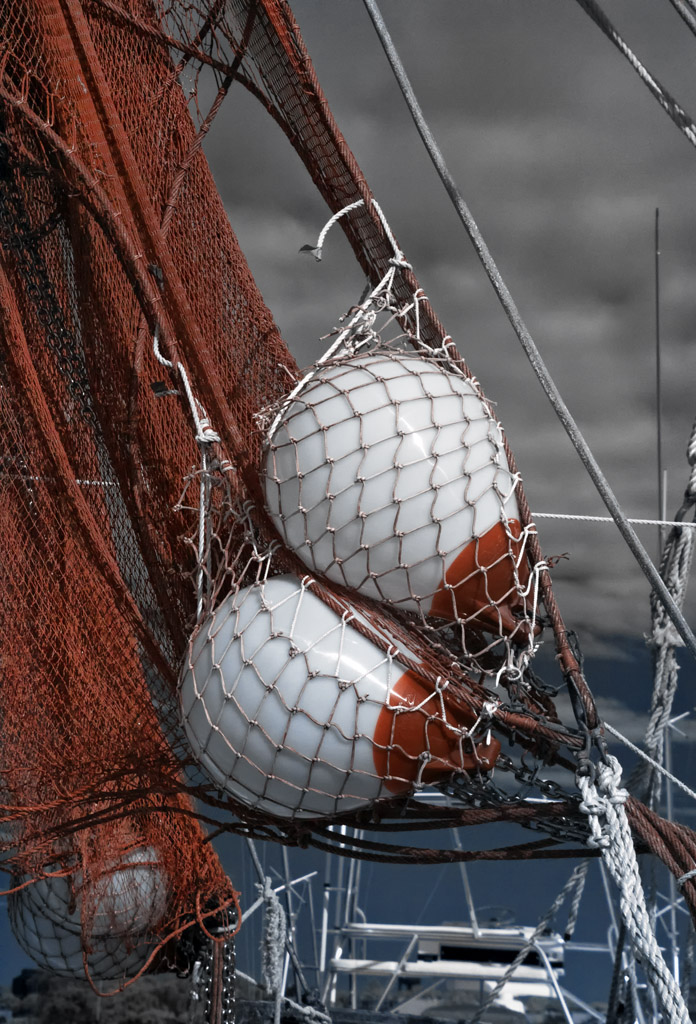
"The Nets" Faux Color Infrared

"Carolina Trunk" Faux Color Infrared

"The Boots" B&W Infrared

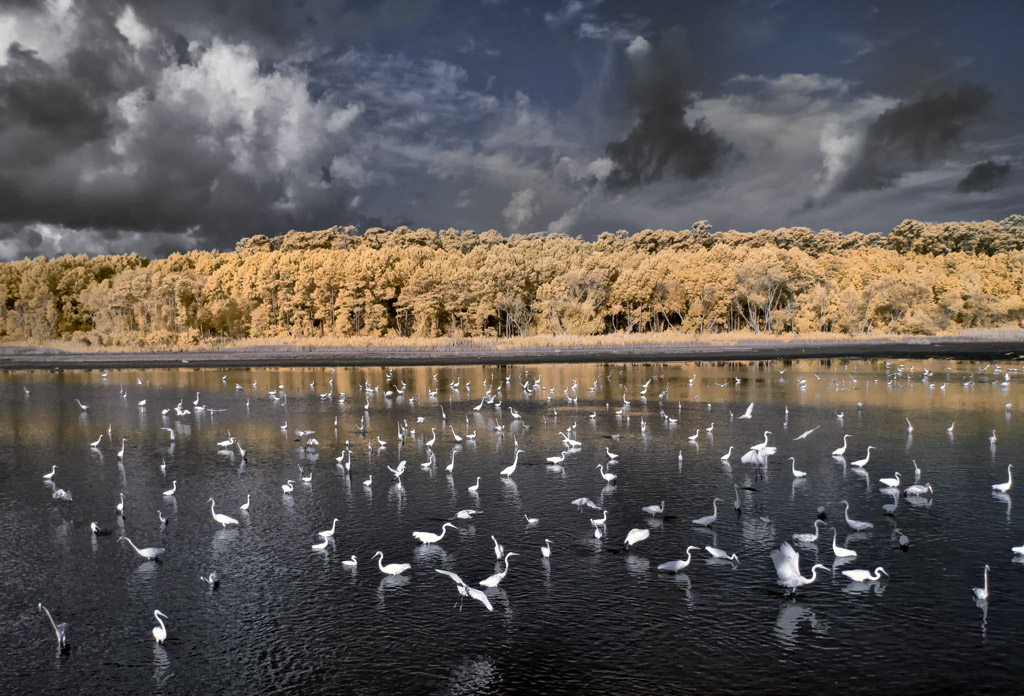
"A Gathering Of Egrets" Faux Color Infrared Image

"Hagood Mill" Faux Color Infrared, Pickins, SC

"Pawleys Pier In Hurrican Hanna" Faux Color Infrared Image

This is just a SMALL example of some of my own personal favorite Infrared work.  Each of these images have been selected based upon the emotional impact generated within me as I view them.  I literally have thousands of such images and invite you to visit my two Infrared WEB sites (links menu on right) for more information and images!